LOCAL CHAT
1. COMMUNICATION ARCHITECTURE
The chat works only when all devices are on the same local network. That’s a hard limit of the WebSocket technology used for data exchange.
CONNECTION OPTIONS
- Direct connection (AP Mode):
Both phones are connected directly to the jammer’s Wi‑Fi network (bs_wifi).
Range is limited by the device’s own Wi‑Fi module. - Via access point (Client Mode / Hotspot) — RECOMMENDED:
The jammer and the second phone connect to a hotspot (tethering) created on the first user’s phone.
Range is much better, since you’re using the host phone’s more capable Wi‑Fi radio.
So two phones can not only control the device at the same time, but also keep a private link between operators.
2. TACTICAL USE
We added this feature because of how things work in the field. You often end up with no internet, a jammed or overloaded cell network (e.g. GSM jammers in malls), or public messengers (Telegram, WhatsApp) are either unsafe or simply not an option.
“Team” scenario: This is especially useful when working together at short range and you need instant coordination.
Example: One team member is outside watching the area while the other is inside the target (e.g. a store). If the Wi‑Fi range is enough for a stable link, operators can coordinate with short messages (e.g. “Security at the entrance”, “All clear”, “Power down”) — no phone calls to draw attention and no dependence on the cell tower.
3. TECHNICAL LIMITATIONS
We built this right into the web interface so you don’t have to leave the browser. Still, because it runs on the microcontroller, the chat has some hardware limits.
4. INTERFACE AND NOTIFICATIONS
For quick alerts we added a notification system to the main menu status bar (where the AM/RF indicators and battery are shown).
New message indicator
When you’re on the main control page (Dashboard), an incoming message shows up right away:
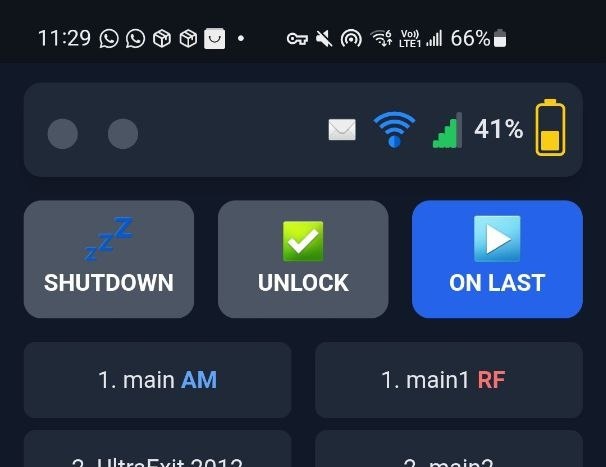 Main page: status bar with new message indicator (envelope icon)
ENVELOPE ICON
It appears in the status bar in place of the connection indicator. Once you open the chat and see the message, the notification icon goes away and the usual indicators return.
How do I open the chat?
The entry point is hidden so it doesn’t clutter the control screen.
Tap the top bar where the indicators and battery level are shown.
Keep your finger down. After 2 seconds you’ll be taken to /chat.html.
On the chat page, besides the input field, you have “Send” and “Home” () for a quick return to the jammer control interface.
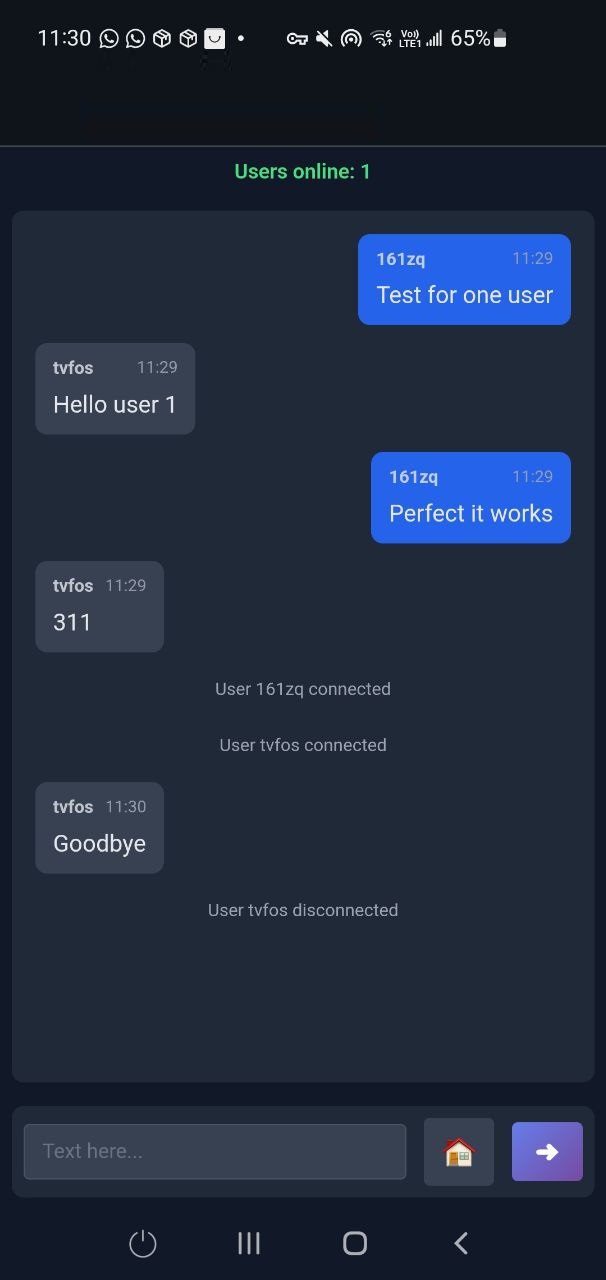 Chat page: message area, text input, “Send” and “Home” buttons
BEFORE YOU USE IT
Before relying on this in the field, practice at home first.
Check max range, try different setups (including Hotspot), and see how stable the link is. Done right, it’s a solid way to keep the team in sync.